


 Facebook
 Twitter
 Instagram
 YouTube
How to Connect & Set Up Google Tag Manager on Your Website



Google Tag Manager (GTM) is one of the most reliable ways to manage tracking across your website without editing code every time. With GTM, you can add events, measure form submissions, and send accurate data to GA4 and other marketing tools. This setup helps you understand user actions clearly and improves how you track performance across your site.
Why Google Tag Manager Is Essential
Google Tag Manager makes tracking easier, safer, and more organised. Instead of adding multiple codes to your website manually, GTM lets you manage everything in one place.
Key benefits:
- Add, edit or remove tracking tags without touching website code.
- Reduce developer dependency.
- Improve website performance by loading tags efficiently.
- Keep all tags structured under one dashboard.
Step 1 : Search for Google Tag Manager in Your Browser
Search Google Tag Manager in your browser to open the official platform.

This takes you to the GTM homepage where you can sign in with your Google account.
Step 2 : Select “Create Account”
Click Create Account to start setting up GTM for your website.

Step 3 : Give Account Name and Select Country
Add an account name – usually your business or website name.
Then select your country from the dropdown list.
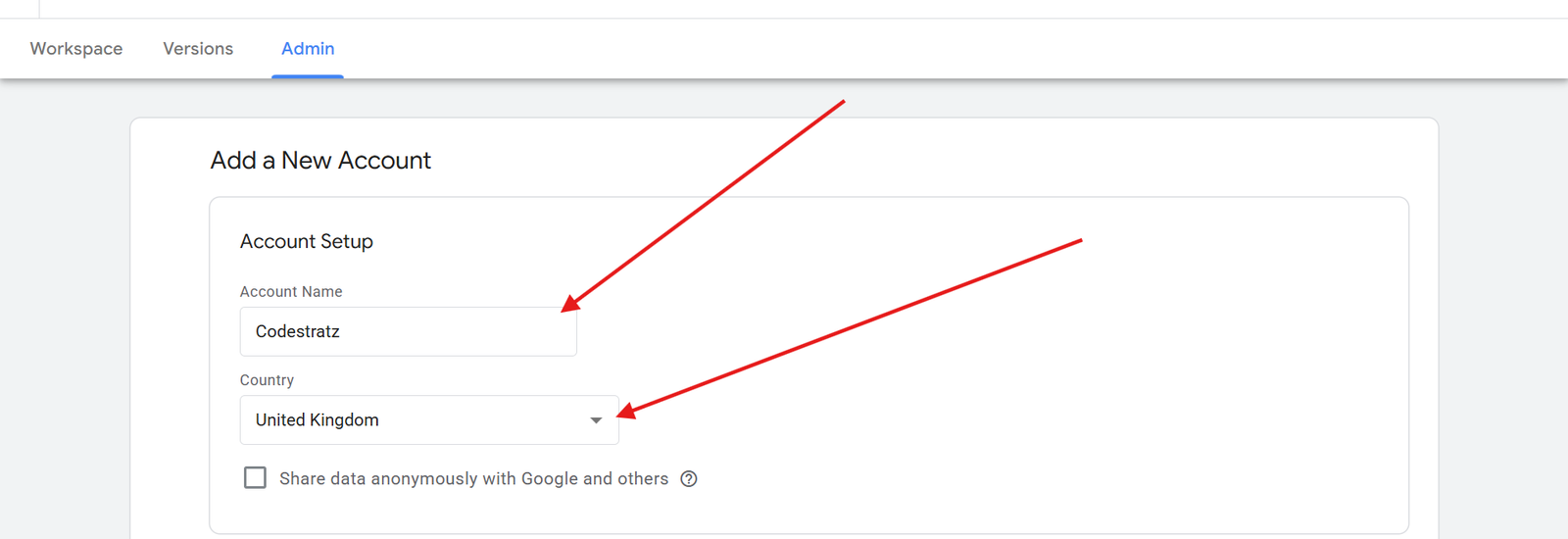
An account can hold multiple containers, so using the brand name keeps it organised.
Do You Want to Select “Share Data Anonymously with Google and Others”?
This option allows Google to use your data anonymously to improve its products.
If you tick it:
- Your usage patterns help improve GTM features.
If you don’t tick it:
- Nothing changes in your GTM performance; it’s purely optional.
Choose based on preference – it does not affect your tracking setup.
Step 4 : Give Container Name and Platform
Add your container name in this format:
- www.website.com (Do not include http or https.)
Select the platform where the container will be used – usually Web for websites.
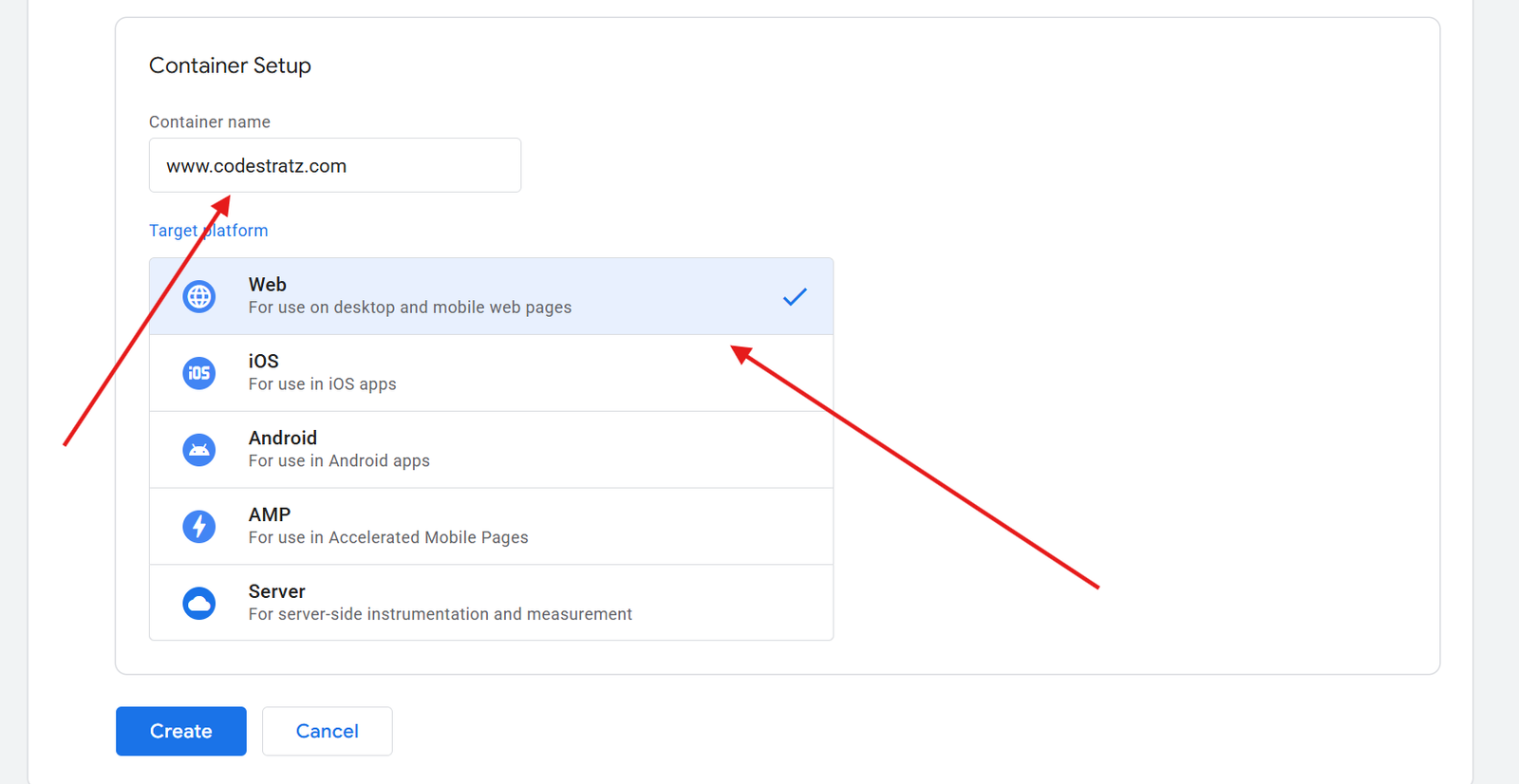
Then click Create.
Step 5 : Agree to the Terms and Conditions
Tick the terms and conditions checkbox and click Yes.
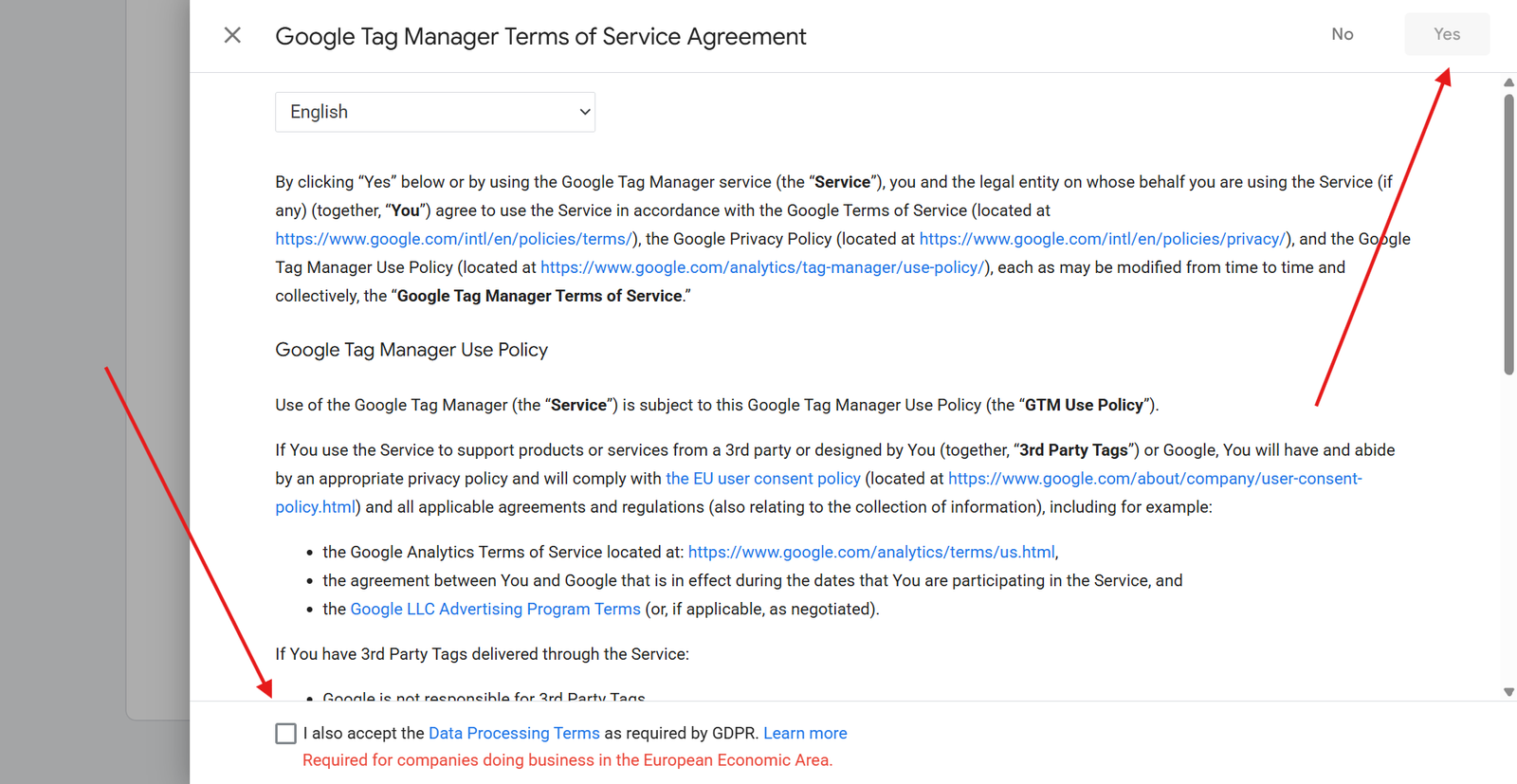
This will open the GTM installation window.
Step 6 : Install Tag Manager in Your Website
You will now see two pieces of code:
One script tag for the <head> & One noscript tag for the <body>
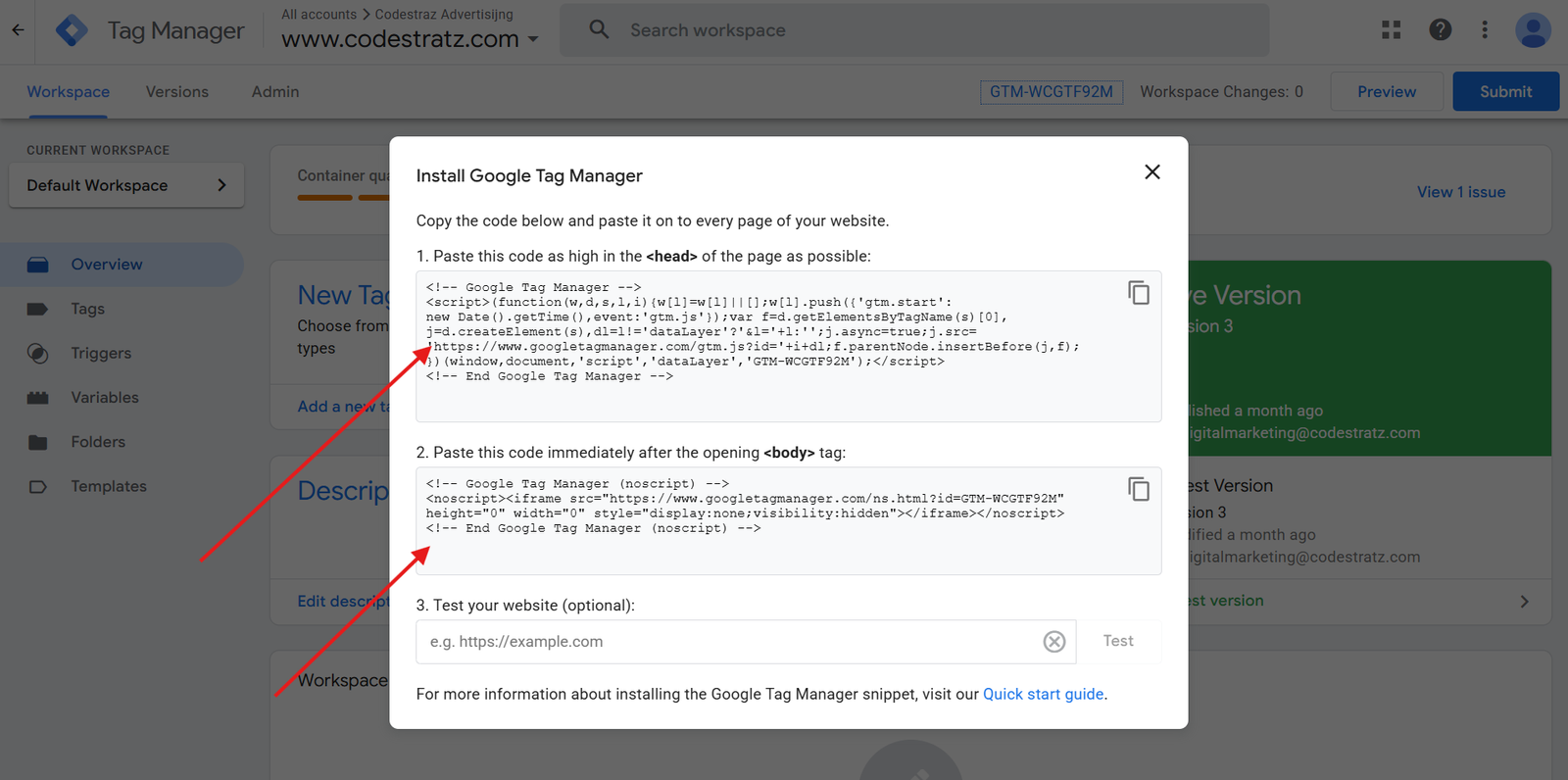
Copy both codes and paste them into your website.
Developers can add it manually, but WordPress users can add it through a header–footer plugin.
Learn How to paste the GTM Code in WordPress Website using Plugin
Step 7 : After Pasting, Come Back and Test Your Website
Paste your website URL into the Test Your Website field.
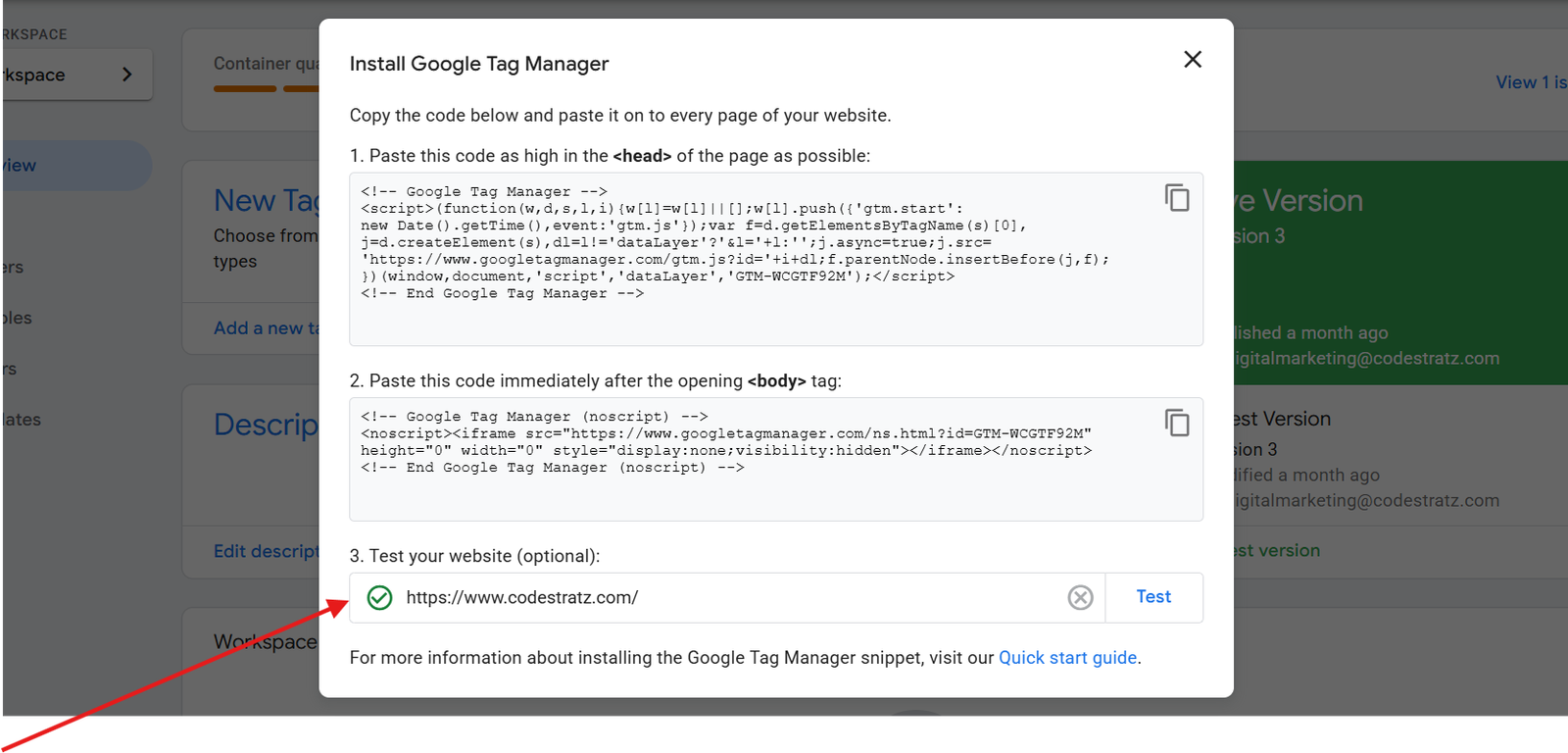
A green tick confirms that the GTM container is installed correctly and is active on your site.
Step 8 : Now Connect Google Tag and GA4 Event with Every Page
Once GTM is installed, you must link it properly with GA4 so your events and page-level tracking work across your entire website.
This connection ensures:
- Every page sends clean data to GA4
- Events like button clicks, form submissions, and page views are captured
- You don’t miss important interactions on any page
Conclusion
Setting up Google Tag Manager on your website gives you full control over tracking without modifying code repeatedly.
Once GTM is installed and linked with GA4, you can easily add events, test them, and monitor user activity accurately. This setup forms the foundation for clean data and better marketing insights across your entire website.
By Rohith Sasanken