


 Facebook
 Twitter
 Instagram
 YouTube
How to Connect GTM Code Using a WordPress Header & Footer Plugin



Adding Google Tag Manager (GTM) to your website is essential for tracking user activity, form submissions, and all marketing events accurately. If you are using WordPress, the easiest way to paste the GTM head and body code is through a plugin without touching theme files. This guide explains how to do it properly and why this connection is important for clean data and smooth tracking.
Why Use a Plugin
Using a plugin removes the risk of editing theme files manually.
It keeps the GTM code active even if you update or change your WordPress theme.
A plugin helps you:
- Add GTM code safely.
- Avoid coding errors.
- Keep tracking active across theme updates.
- Manage all header and footer scripts in one place.
Step 1: First, Open Your WordPress Backend
Open your website and type /wp-admin at the end of the URL to access the login panel.

This will take you to the WordPress login page.
Step 2: Enter Your Login Credentials
Add your username or email and the password for the WordPress backend.

Once submitted, you will reach the WordPress dashboard.
Step 3: Select “Plugins” and Click “Add New Plugin”
On the left menu, select Plugins, then click Add New.
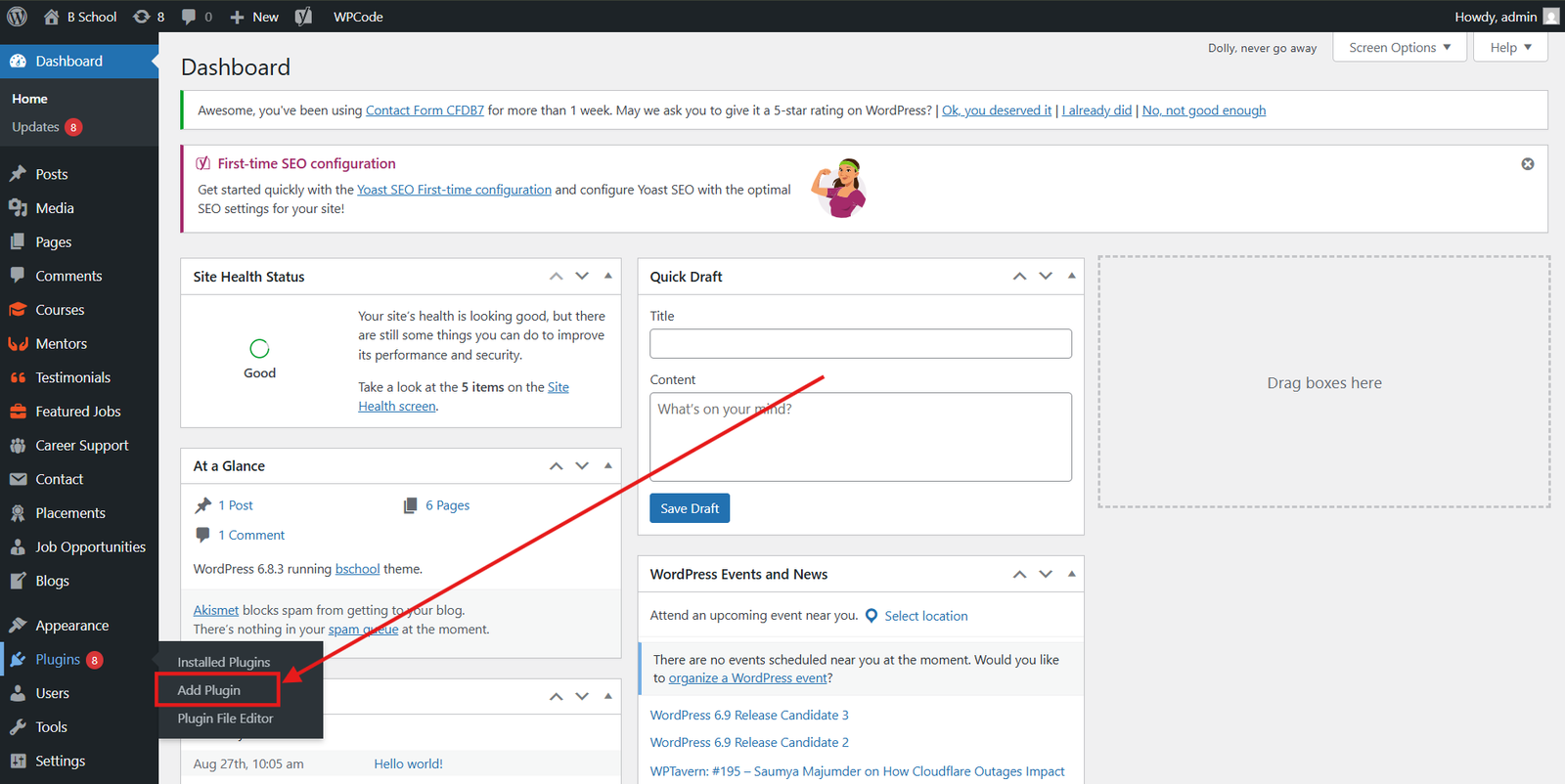
This is where you search and install required plugins.
Step 4: Search “Header and Footer” in the Plugin Search Bar
Type Header and Footer in the search box.
Choose a plugin with good ratings and regular updates.
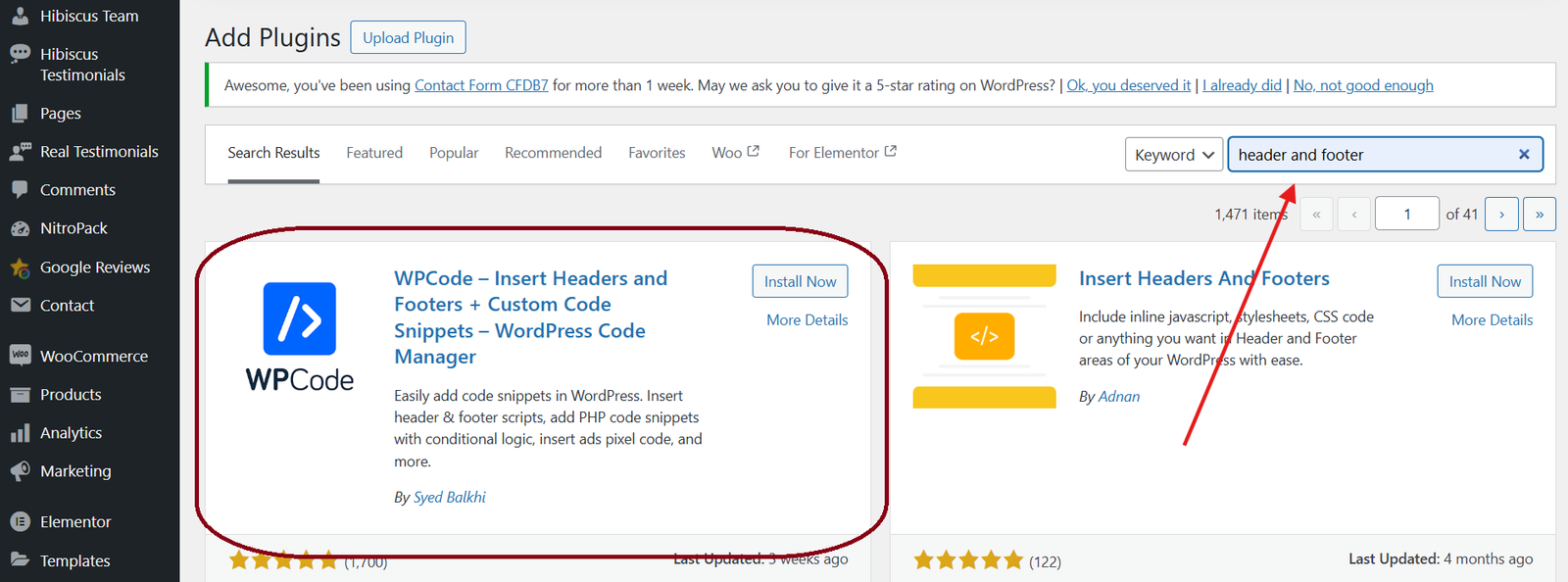
This plugin allows you to paste tracking codes safely.
Step 5: Install the Plugin
Click Install Now on the selected plugin.
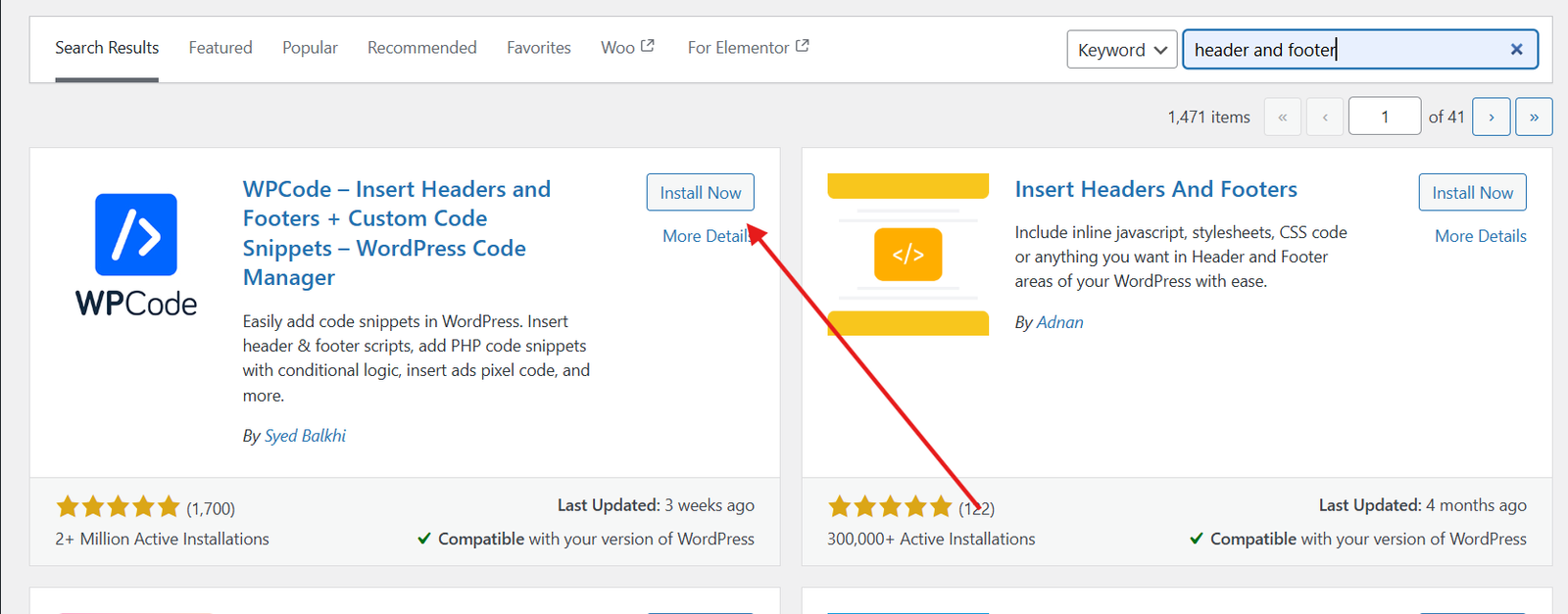
Wait a few seconds for the installation to complete.
Step 6: Activate the Plugin
Click Activate once the plugin is installed.
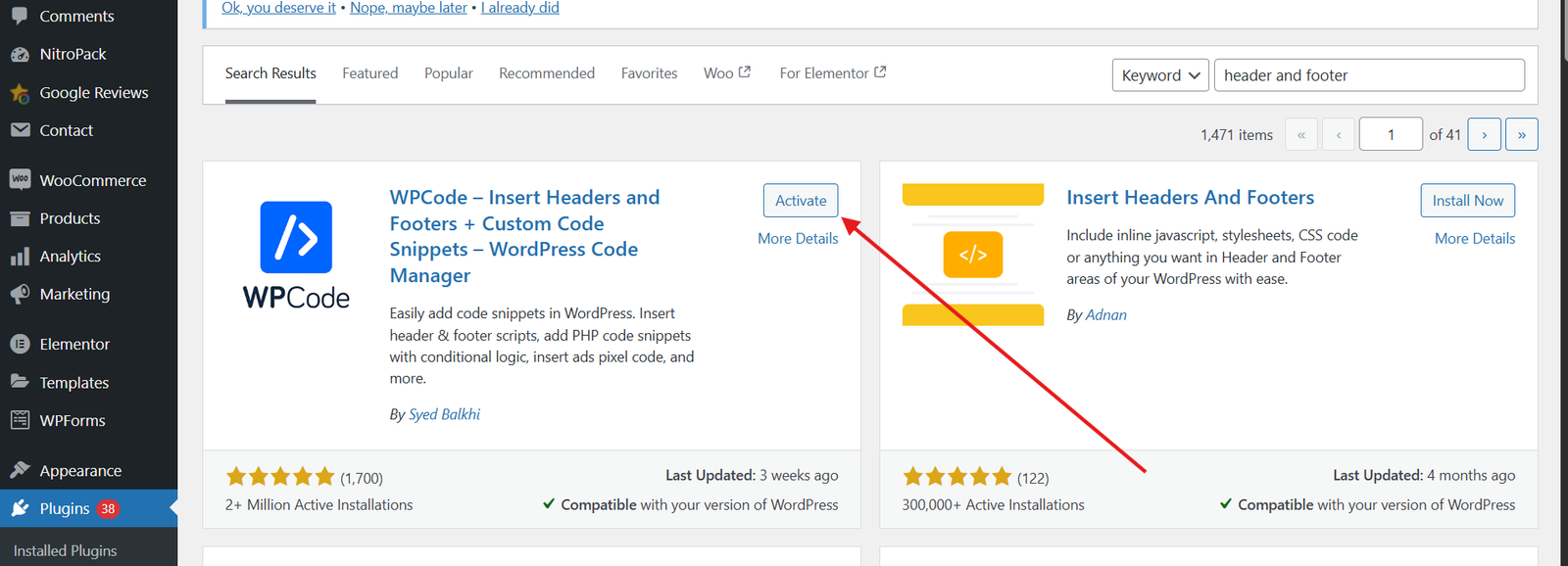
The plugin is now ready to use.
Step 7: Go to Code Snippets and Select “Header & Footer”
On the left menu, look for Code Snippets or the plugin name. Select the option that lets you paste scripts into the header and footer.
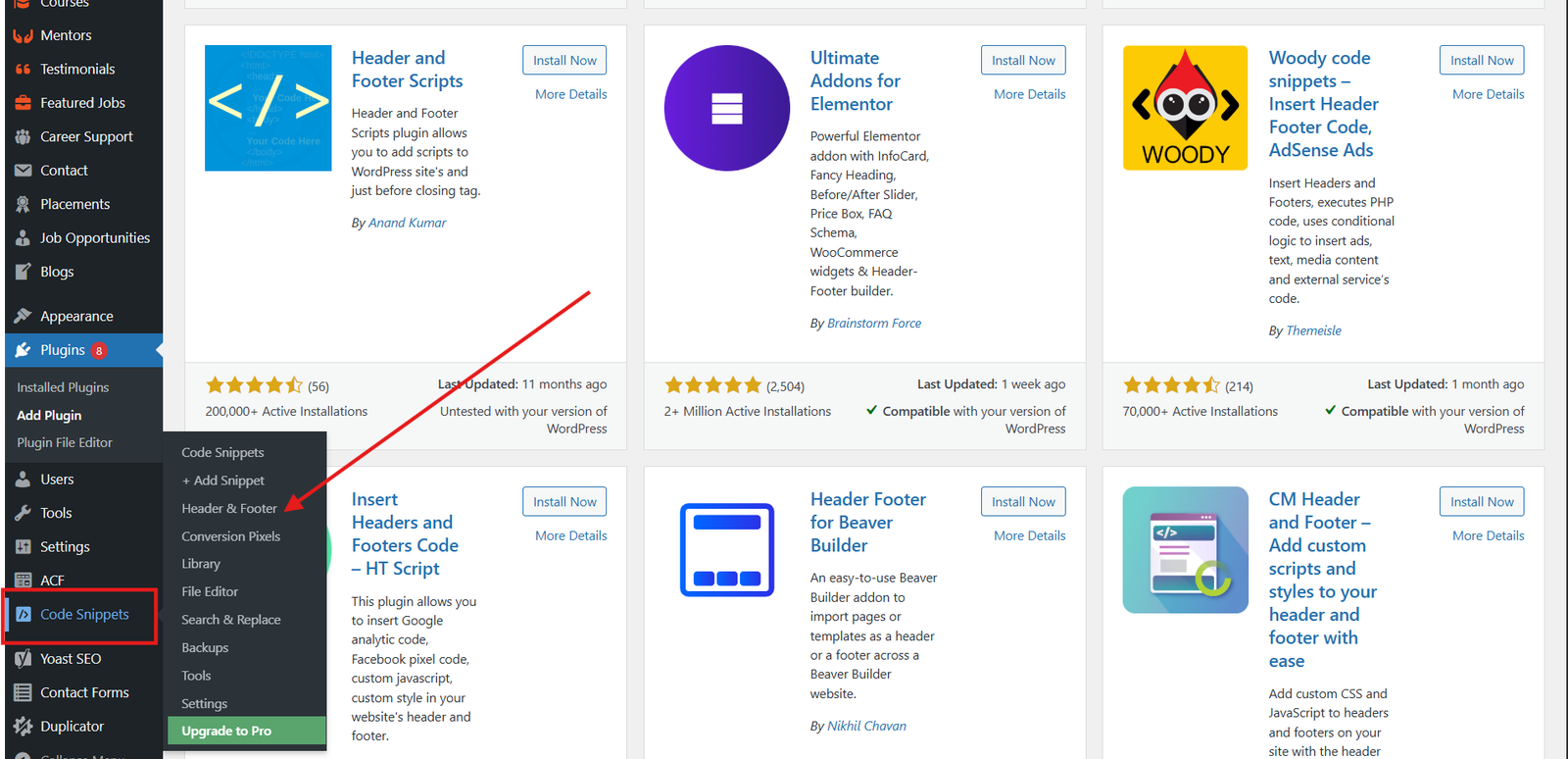
This is where the GTM code will be added.
Step 8: Paste the GTM Code
Copy the head code from Google Tag Manager and paste it into the Header section.
Paste the body code into the Body or After Tag section.
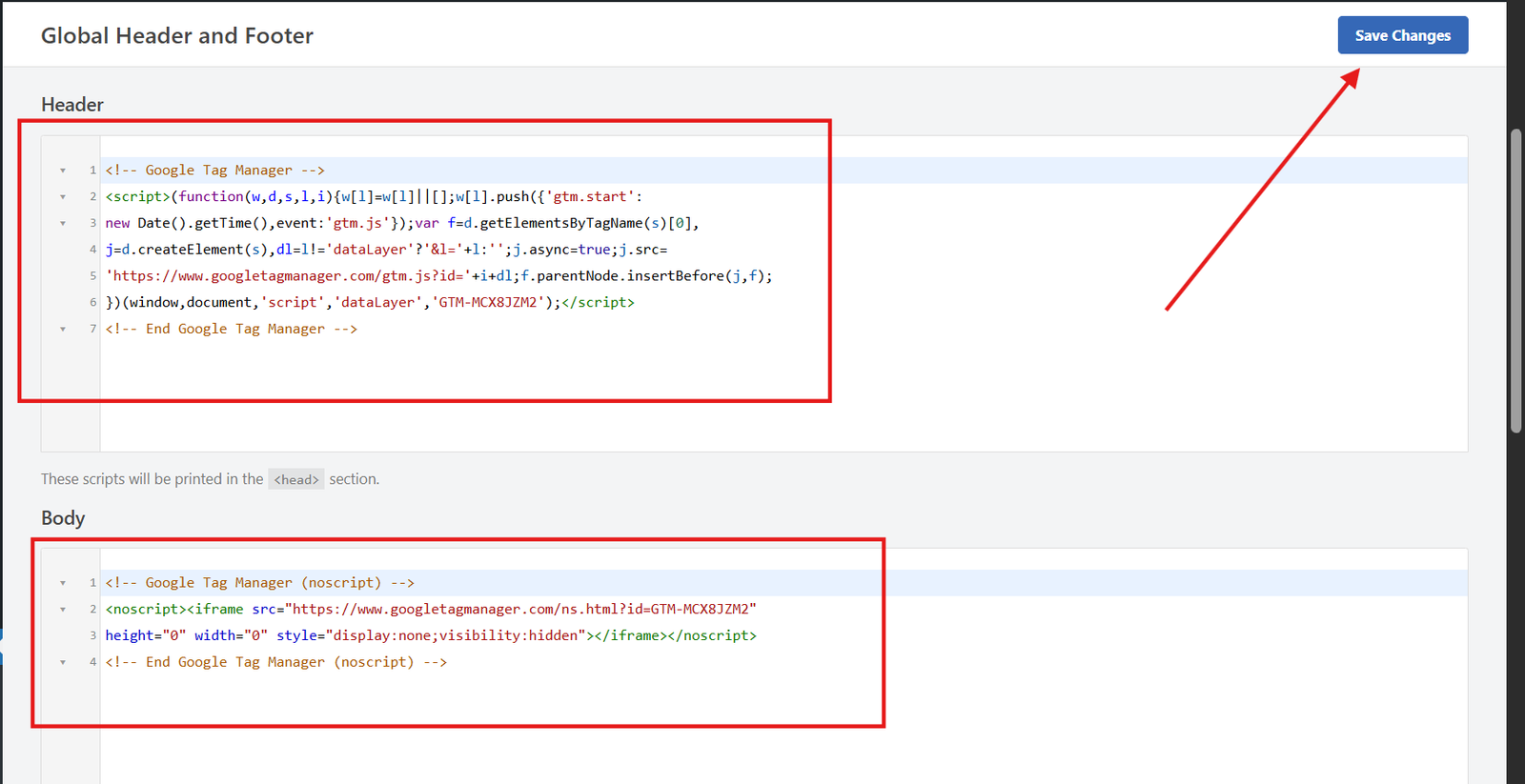
Make sure both snippets are added correctly before saving.
Step 9: Now Check Using the Test Option to Verify Connection
After saving, go back to the GTM setup screen and paste your website URL in the Test Your Website field.
A green tick will confirm that the code is installed properly.
How to check if GTM is connected to a website
This ensures the GTM container is live and tracking can be added.
Conclusion
Pasting Google Tag Manager code through a WordPress plugin is the safest and most efficient method. It keeps your tracking consistent, avoids code errors, and ensures your GTM setup remains intact even when themes change or update. Once the GTM code is added correctly, you can start setting up your tags, triggers, and GA4 tracking with confidence.
By Rohith Sasanken